
The question I keep getting
A customer recently sent me a VCF Operations capacity report that flagged three SQL Server clusters as P1. Every one showed 0% Capacity Remaining and 0 or 1 days of Time Remaining. Yet the vCenter “Capacity and Usage” panel next to each finding told a much calmer story.
| Cluster (renamed) | CPU used / total (GHz) | Memory used / total (GB) | VCF Operations finding |
|---|---|---|---|
| DB-Cluster-01 | 21.69 / 122.92 (18%) | 473.39 / 639.32 (74%) | 0% remaining, 0 days |
| DB-Cluster-02 | 132.77 / 276.54 (48%) | 1,679.59 / 4,093.98 (41%) | 0% remaining, 1 day (CPU) |
| DB-Cluster-03 | 143.39 / 305.04 (47%) | 1,599.15 / 2,750.16 (58%) | 0% remaining, 1 day (CPU) |
His question was simple: which of these two views is wrong?
Neither. They answer two different questions. I hear this from almost every team that is new to VCF Operations (formerly Aria Operations), so in this post I unpack how the capacity engine works, walk through the math with these real numbers as an example, and show you how to prove the result on any cluster in your own environment.
Two views, two different questions
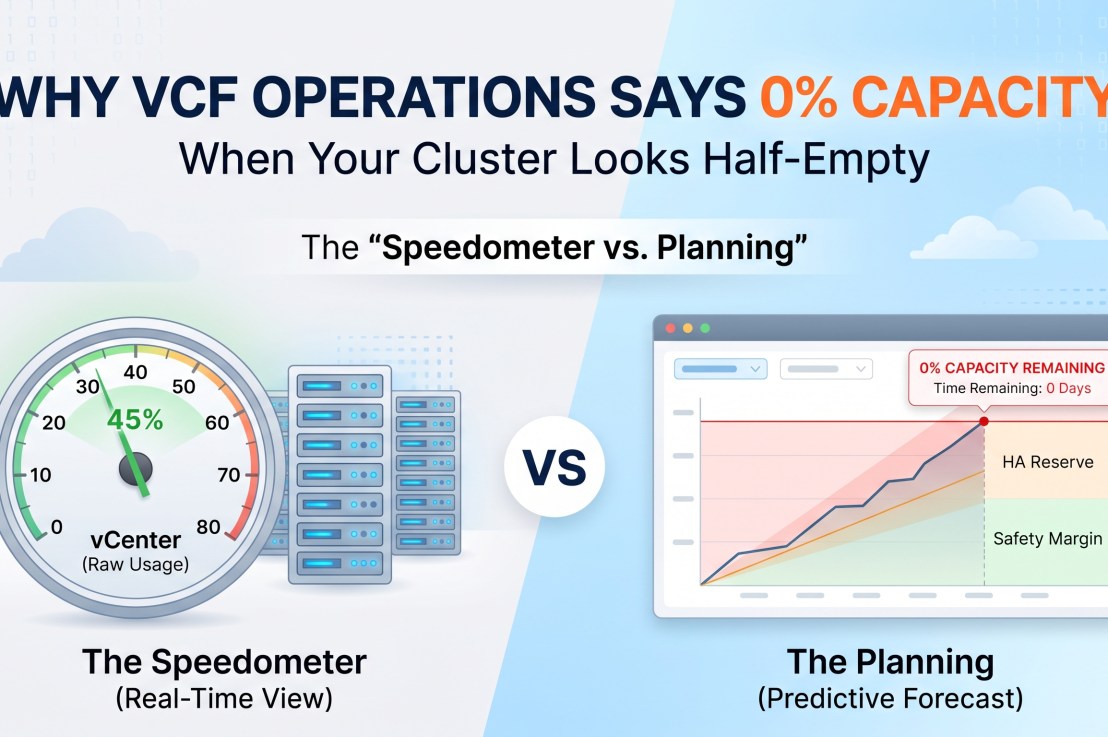
The vCenter panel answers “How busy is this cluster right now?” VCF Operations answers “How much more can I safely place here, and for how long?” Broadcom documents exactly this symptom in KB 437777: critical capacity alerts while vCenter shows much lower raw utilization.
| vCenter “Capacity and Usage” | VCF Operations Capacity / Time Remaining | |
|---|---|---|
| Time basis | One sample at the last refresh | Full collected history, projected one year ahead |
| Capacity basis | Raw total of all hosts | Usable capacity: total minus HA reserve minus policy buffer |
| Workload Metric | CPU Usage, Memory Consumed | CPU Demand, Memory Utilization (the engine’s memory demand), Disk Space Used |
| Peaks | Not visible unless they happen at refresh time | Included through the forecast’s upper bound (Conservative risk level) |
| Allocation | Ignored | Optional allocation model with overcommit ratios |
| Question answered | How busy is it now? | How much can I add, and for how long? |
Put simply, the right side of that report is a forecast-based planning metric. The left side is a snapshot of the speedometer.
Inside the capacity engine
The engine takes two inputs per resource, Demand and Usable Capacity, and produces four outputs: Time Remaining, Capacity Remaining, Recommended Size and Recommended Total Capacity (VMware VCF blog). Each step below changes the number away from what vCenter shows.

vCenter shows only the raw total and the current reading; everything in the middle of this picture is what VCF Operations adds.
Step 1: Usable capacity, not raw capacity
Usable Capacity = Total Capacity - HA Reserve - Capacity Buffer
The HA reserve comes from the cluster’s vSphere HA admission control policy. The buffer is the headroom percentage you set in the VCF Operations policy (Aria Operations metric reference). vCenter’s “free” figure includes both, so it always looks more generous.
Step 2: Demand, not usage
- CPU uses CPU | Demand: what the VMs wanted, including time spent waiting in Ready or contention. Demand is always at or above Usage.
- Memory maps “Demand” to Memory | Utilization, not Memory | Consumed (KB 439253). With VMware Tools running, it is Guest Needed Memory + (Guest Page In Rate × Page Size) + Total Capacity − Guest Physically Free. Without Tools, it falls back to Consumed.
- Disk space uses Used.
This matters a lot for SQL Server. SQL deliberately holds memory in its buffer pool, so the guest reports that memory as needed and Memory | Utilization stays high even when the host looks relaxed.
Step 3: A forecast range, not a single line
The engine learns trends and multiple overlapping cycles from history and projects a utilization range with an upper and lower bound, one year into the future (vRealize Operations capacity engine docs).
The policy’s risk level picks which line is used:
- Conservative (default) uses the upper bound. Conservativeness can be tuned from 1 to 5, default 3; higher levels widen the bounds.
- Aggressive uses the mean of the projection.
Rare, momentary peaks may be treated as outliers even at the most conservative setting (Aria Operations policy docs). Repeating peaks, such as a nightly index rebuild, are not outliers; they are part of the pattern.
Refer to the screenshot below for a sample configuration of Risk set to “Conservative Level 3”

Step 4: Capacity Remaining
Capacity Remaining compares usable capacity now with the projected utilization over the next three days. If the projection is above usable capacity, the result is 0.
Capacity Remaining = max(0, Usable Capacity − peak Projected Utilization over the next 3 days)
Capacity Remaining (%) = Capacity Remaining / Usable Capacity x 100

Step 5: Time Remaining
Time Remaining = Days until Projected Utilization(t) > Usable Capacity
Both outputs are computed for CPU, memory and disk space separately. The cluster shows the most constrained resource, so one tight resource sets the headline. 0 days means the projection has already reached usable capacity.
The optional allocation model
If enabled, the engine also compares allocated vCPU, vRAM and Disk with Usable Capacity multiplied by your overcommit ratios. It then alerts on whichever model, demand or allocation, runs out first.
Other policy settings that change the answer
- Business hours: when set, the forecast uses only business hours, not 24 hours.
- Custom metrics: Super Metrics or other metrics can replace the default capacity inputs.
- VCF 9 additions: you can exclude anomalous time ranges from projections, and exclude storage from the capacity status when it is managed separately (VMware VCF blog).
Worked example: why DB-Cluster-01 shows 0 GB of memory remaining
Assume DB-Cluster-01 has 3 hosts with HA admission control set to tolerate one host failure (about 33% reserved) and a 0% policy buffer. Under those assumptions, consumption is already above usable capacity:
| Step | Memory (GB) |
|---|---|
| Total capacity (vCenter “capacity”) | 639.32 |
| Less HA reserve (N+1 on 3 hosts, ~33%) | −213.11 |
| Less policy capacity buffer (0% here) | 0.00 |
| Usable capacity | 426.21 |
| Consumed at 8:52 AM (vCenter “used”) | 473.39 |
| Capacity Remaining | 0 (−47.18, floored at 0) |
The 165.94 GB that vCenter calls “free” is the room HA needs to restart VMs after a host failure. The engine’s memory demand metric (Utilization) and the Conservative upper bound only push the projection higher, so the result is 0% and 0 days. Any policy buffer would make the gap larger.
CPU follows the same logic. Usable CPU would be about 81.95 GHz (122.92 GHz less 33%). The 21.69 GHz in the snapshot is one morning reading; if the overnight SQL maintenance or backup window regularly drives demand to around 82 GHz, the forecast reports 0 GHz remaining.
The other two clusters were CPU-bound. Assuming 4 hosts with N+1 (25% reserved), usable CPU is about 207.4 GHz on DB-Cluster-02 and 228.8 GHz on DB-Cluster-03. At 8:53 AM they were already at 64% and 63% of usable capacity on Usage alone, before counting Demand or peaks. A forecast that hits usable capacity within a day is very plausible.
Your host count, HA policy and buffer will differ. The next section shows how to read the real values.
Prove it yourself on any cluster
Pick one flagged cluster and work through these six checks. Together they reconstruct the engine’s answer from its own inputs. Paths are for VCF Operations 9.
Note : Images in this section are sample screenshots taken from VMware Hands-on-Lab, for sample purposes for helping with easy navigation through the VCF Operations menu. For example : I have used the specific lab : HOL-2711-08-VCF-L for taking these screenshots
- Open the cluster’s Capacity tab. Use Global Search, open the cluster and select the Capacity tab. Note which resource (CPU, memory or disk space) has the lowest Time Remaining. The chart shows history, the projected range and the usable capacity line, so you can see exactly where they meet.

- Read the engine’s own metrics. On the cluster’s Metrics tab, expand Capacity Analytics Generated, then CPU, Memory and Disk Space:
| Metric | What it shows you |
| Total Capacity | The raw figure vCenter uses |
| Usable Capacity | Total minus HA reserve and buffer; the gap to Total is what vCenter counts as “free” |
| Capacity Remaining / Capacity Remaining (%) | Usable capacity minus the 3-day projection |
| Time Remaining | Days until the projection reaches usable capacity |
| Recommended Size / Recommended Total Capacity | How much capacity would keep Time Remaining green |

- Compare demand with usage, and look for peaks. Chart CPU | Demand against CPU | Usage, and Memory | Utilization against Memory | Consumed, over the last 30 days. Look at the maximum values, not the averages. Below screenshot shows the example of comparing CPU|Demand and CPU|Usage.

- Confirm the HA reserve in vCenter. On the cluster, go to Configure > vSphere Availability > Admission Control. Check the failover capacity percentage or the number of host failures tolerated.
- Confirm the policy settings. Go to Operate > Administration > Policy Definition, open the policy applied to the cluster, and review its Capacity settings: risk level and conservativeness, capacity buffer, allocation model and overcommit ratios, business hours and custom metrics. (In VCF operations 9.0 it is Infrastructure Operations > Configurations > Policy Definition)
- Look for events that skew the baseline. Check for hosts recently removed, added or left in maintenance mode, and for one-off spikes such as a migration, a DR test or an incident. In VCF 9 you can exclude anomalous time ranges, or use Reset in the cluster’s Time Remaining pane to start a new baseline (KB 437777). Policy changes show in usable capacity at the next collection cycle, but Time Remaining needs time to re-learn.
Is 0% a real risk or a policy artifact?
Most of the time 0% is telling you something true. Occasionally it reflects a setting or an event rather than the workload. Use what you found in the checks above to decide which:
| What you find? | What it usually means? | What to do? |
|---|---|---|
| Usable capacity is far below total, and HA reserves more than your resiliency standard requires | Policy artifact | Align admission control with the real requirement. Never remove HA just to turn a metric green. |
| Demand peaks line up with known windows: backups, index maintenance, month-end | Real risk during those windows | Decide whether the peak must be absorbed, rescheduled or spread out. Don’t hide it. |
| One-off spike from a migration, DR test or incident | Artifact | Exclude the anomalous time range, or reset the Time Remaining baseline. |
| A host was recently removed or left in maintenance mode | Temporary artifact | Fix the host state, then let the engine re-baseline or reset it. |
| CPU Ready is high and Demand stays well above Usage | Real contention | Rebalance, rightsize or add capacity. |
| Memory Utilization near total on SQL VMs, without guest paging | SQL buffer pool working as designed | Check SQL max server memory against the VM size, and rightsize memory to match. |
| The allocation model is on with tight overcommit ratios | Policy setting | Confirm the ratios reflect your actual standards. |
| Storage is the constraint while compute is healthy | Depends on how storage is managed | In VCF 9 you can exclude storage from the capacity status if it is planned separately. |
What to do next: Reclaim, Rightsize, then Expand
Once you trust the number, act on it in this order. Each step is cheaper than the next.
- Reclaim. Remove idle and powered-off VMs, old snapshots and orphaned disks. VCF Operations surfaces these in its reclamation views, and Super Metrics can tailor them to your environment. [Refer to my earlier blog on Reclaiming wastage resources utilizing VCF Operations ]
- Rightsize. Oversized SQL VMs inflate allocation and can increase CPU scheduling contention for everyone. Use the rightsizing recommendations, and validate SQL max server memory and vCPU counts with the DBA team, since licensing usually follows vCPUs.
- Model before you buy. Use What-If Analysis to test new workloads, workload moves or added hosts against the same engine. Recommended Total Capacity tells you the size of the gap, so you buy what you need, not a round number.
- Expand. If the gap remains after reclaiming and rightsizing, add capacity with the evidence from the checks above to support the request.
The GreenOps angle: 0% is not a purchase order
Misreading these two numbers leads to one of two expensive mistakes. Teams that read “0% remaining” as a procurement trigger buy hosts they may not need, along with the power, cooling, rack space and embodied carbon that come with them. Teams that trust the half-empty vCenter bar ignore a real risk until a host failure or a month-end peak exposes it.
Understanding usable capacity breaks that cycle. When you know how much of the gap comes from HA, from the buffer, from genuine peaks and from waste, you can reclaim and rightsize first and buy last. Every host you do not need to rack is energy you never have to supply. That, for me, is where capacity management and sustainability turn out to be the same discipline.
Wrapping up
The next time someone asks why VCF Operations says a half-empty cluster is full, the short answer is: the engine is not measuring how busy the cluster is now. It is measuring how much of the capacity you can actually rely on is left, once you account for HA, your safety buffer, real peaks and the trend. Run the six checks on one cluster and you will see the engine’s arithmetic laid out in its own metrics.
If you have run into a 0% finding that turned out to be a policy artifact, or one that saved you from an outage, I’d love to hear about it in the comments.
References
- Broadcom KB 437777: Critical CPU capacity alerts despite low utilization in vCenter
- Broadcom KB 439253: Understanding Demand vs. Utilization memory metrics
- Capacity Analytics Generated metrics (Aria Operations 8.14 docs)
- Capacity policy settings and risk levels (Aria Operations 8.12 docs)
- Capacity engine and calculations (vRealize Operations 8.6 docs)
- What’s new in capacity management for VCF 9 (VMware VCF blog)
- Effective capacity management with VCF (VMware VCF blog)
- VMware Hands-on Labs
- VMware Hands-on Labs : Understanding Capacity Monitoring, Optimization and Planning (HOL-2711-08-VCF-L)